Copy one prompt. Let your client guide installation, pairing and a first screen read, with one manual step at a time.
Published setup packages: macOS Apple Silicon, macOS Intel, Windows x64, Windows ARM64, Linux x64, Linux ARM64. Installation lifecycle passed CI; client availability on each OS, native panels and physical-phone reading require separate verification.
Only your chosen client. Existing configuration and pairing stay intact.
Read the full prompt
What tools does your client need?
Automatic setup needs web reading, file downloads, local shell execution and image reading. An in-session view also needs a native plugin or built-in browser. MCP-only clients without shell access need external manual installation first.
Install Tapilot on Android, enable wireless control and keep the phone unlocked and reachable from the computer. No preinstalled Tapilot Skill or separate model key is required for the default steps mode.
Where will the phone appear?
Acceptance boundaries as of November 5, 2026. Historical cases use an Android 15 emulator; they do not establish every phone or the full lifecycle.
WorkBuddy
Built-in browser sidebar; MCP preview is read-only.
The installer merges local MCP configuration and links the Skill. Trust and enable Tapilot, then start a new task. Use the Skill CLI for phone operations.
Chinese and English conversations and browser sidebar observed. MCP panel still needs native acceptance.
Add a custom STDIO connector using the returned launcher.command and launcher.args. Import skillFolder, enable both, and start a Local computer task. No enterprise qualification required. Re-import the Skill after updates.
English conversation and browser sidebar observed. Complete Chinese case and stable MCP panel remain pending.
Cherry Studio
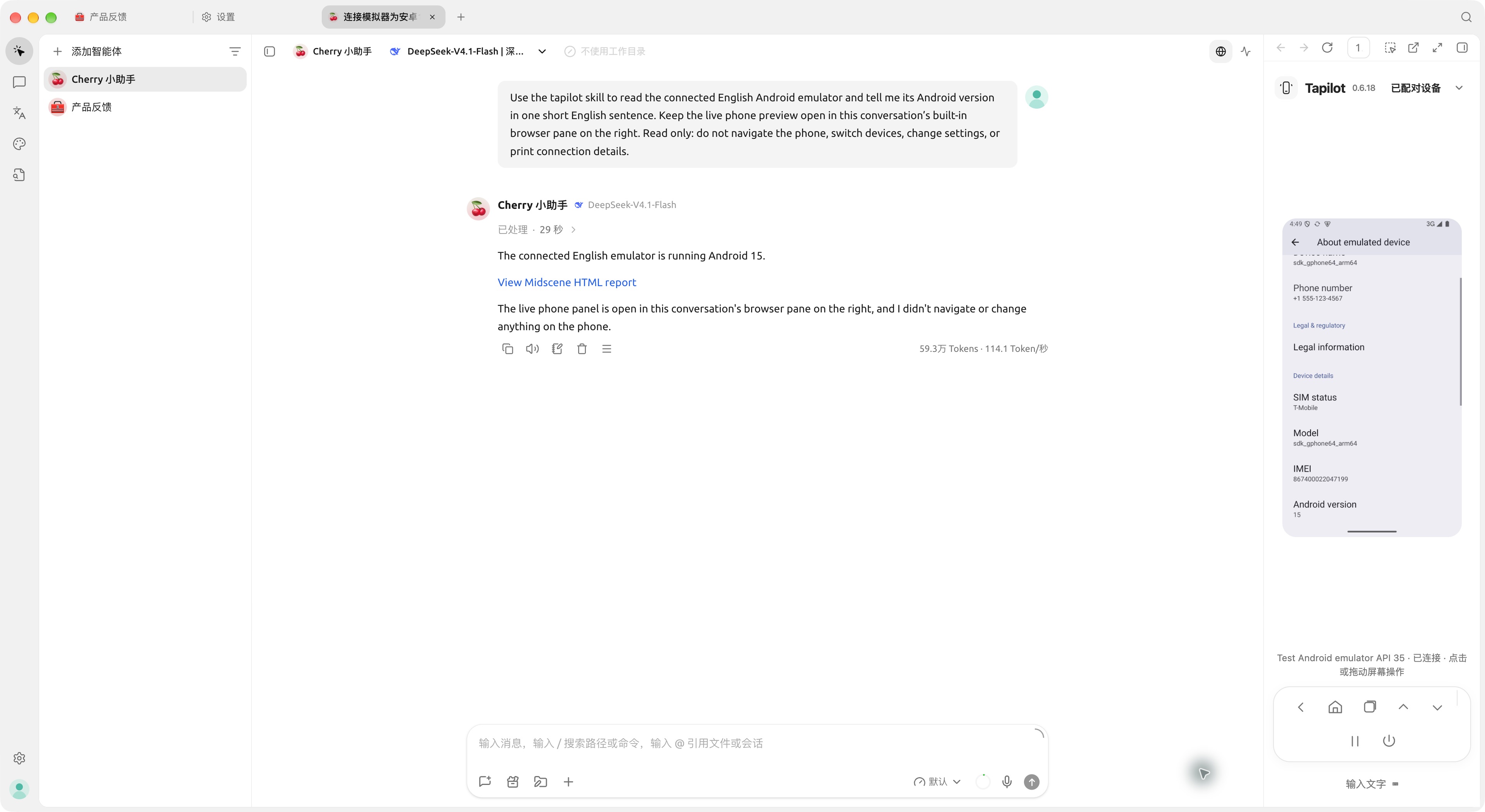
The desktop Work Agent’s built-in browser pane. No Tapilot MCP is needed.
Settings → Skills → Add Skill → Local import: import the returned skillFolder, enable it globally and in the Work Agent. Enable Shell, image-reading File and Browser tools. Re-import changed Skills after updates.
Chinese and English conversations, screenshot reading and browser pane observed. Ordinary chat, mobile and desktop MCP Apps are outside this route.
DSH Web
Native Tapilot right sidebar, opened from the conversation header.
Install on the machine running DSH (>=0.2.1-rc.5 <0.3.0-0), preserving DSH_HOME. Run the returned registration command with pluginDirectory, reload Web, and open Tapilot from the conversation header. A remote Linux DSH host cannot use the macOS archive.
Chinese and English conversations and native sidebar observed. DSH Go is a separate route and has not passed native acceptance.
Codex
Existing native Tapilot plugin panel.
Reuse the native plugin; never install a duplicate MCP or Skill. Local marketplace commands must run in a repository root containing .claude-plugin/marketplace.json: codex plugin marketplace add . then codex plugin add tapilot@tapilot-local. The setup archive is not that repository. A public plugin distribution entry is still pending; retain an existing installation or report this limitation.
Native route retained; full native client acceptance was not repeated in this round.
The installer merges MCP configuration and links the Skill. Trust and start Tapilot, enable the Skill, and open a new signed-in Copilot Agent conversation.
Configuration and protocol checks covered; native conversation and actual panel remain unverified.
Other agents / 其他客户端
Skill + CLI; an embedded panel is not guaranteed.
Requires local shell execution and image reading. Import the returned skillFolder using the host’s Skill mechanism. An MCP-only host needs external installation or a supported marketplace; a prompt cannot create missing local execution tools.
Host-specific native acceptance required. Cursor native testing is excluded.
A real conversation and screen read
November 5, 2026. Cherry Studio 2.1.10, Skill + CLI. English conversation and Android emulator; parts of the host UI remain Chinese. The agent opened and navigated the built-in browser.
Manual setup and agent instructions
Setup version 0.6.20 Preview · macOS Apple Silicon · 62.9 MB
Download the matching official archive and verify its SHA-256: shasum -a 256 on macOS, sha256sum on Linux, or Get-FileHash -Algorithm SHA256 in Windows PowerShell.
Extract and run Install Tapilot.command on macOS, Install Tapilot.cmd on Windows, or sh install-tapilot.sh on Linux. Choose only your client. Node and dependencies are included.
Follow the actual returned paths for Skill import, connector enablement or plugin registration. No developer directory is needed. Codex follows its native plugin route above.
Pair with the QR scanner inside the phone’s Tapilot app. Compare the live panel, then ask the agent to read the current screen once.
If your client cannot read websites, paste the instructions too. If it cannot execute commands, run the installer yourself before continuing the host steps. Installer success does not verify actual pixels.
Updates and troubleshooting
Run the newer verified archive for the same client, preserve configuration and pairing, then restart the connector or host. Doubao and Cherry Skill copies may need re-import. Preserve DSH_HOME and use the returned stable plugin entry. Unattended network updates are not supported.
Installed, but no picture
Check Skill binding and enabled tools. After one failed MCP recovery, WorkBuddy and Doubao can use their built-in browser sidebar. A system browser fallback does not count as an in-session panel.
Paired, but cannot read the phone
Check unlock, wireless control, network reachability and controller ownership. Privacy pause requires your explicit resume; do not delete pairing, take over a phone or silently switch devices.
Old version or configuration conflict
Restart the host and connector, and check whether the Skill needs re-import. Preserve and report edited configuration conflicts instead of force-overwriting. Fix model authentication in the client.
 Tapilot